
 Step 2. Adding the Business Layer Project
In this step you will add an existing Order System Business Objects project to your new WPF solution.
- Go to the Solution Explorer and right-click the solution node (the first node), and select Add | Existing Project... from the shortcut menu.

In the Add Existing Project dialog, navigate to one of these folders depending on the type of business object project you have created:
- C:\MM .NET Jump Start\Order System Business Objects EF VB
- C:\MM .NET Jump Start\Order System Business Objects EF Code First VB
Select the .vbproj file.
- C:\MM .NET Jump Start\Order System Business Objects EF VB
- Next, click the Open button. Your Solution Explorer should now look something like this:

- When you eventually build this solution (not yet), the business object project will produce a DLL and the WPF project will produce an EXE. In this step you will add a reference to the business object DLL in the WPF project.
To do this, right-click the Order System WPF VB project's References node and select Add Reference... from the shortcut menu.

In the Add References dialog, select the Projects tab, then click the OK button. This adds the business object project assembly to the project.
- Right-click the solution (the first node in the Solution Explorer) and select Project Dependencies... from the shortcut menu, you can select Order System WPF VB in the Projects combo box and see that it Depends on the Business Object project. This means when you rebuild the entire solution, the business object project will be built first, then the WPF project will be built afterwards:

Click OK to close this dialog.
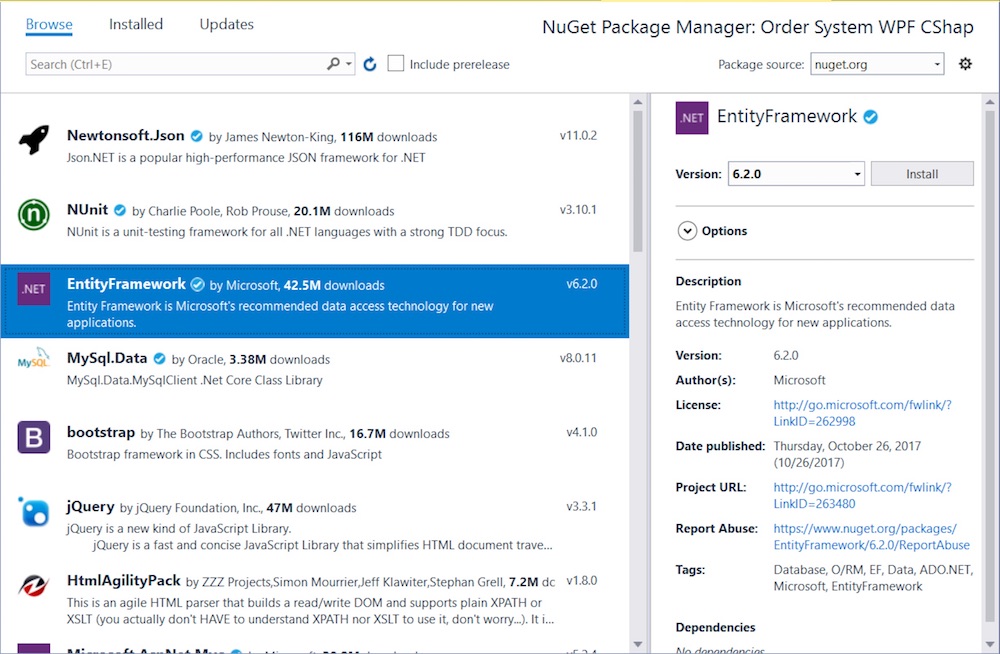
- Now we need to add the Entity Framework NuGet package to the WPF project. To do this, right-click the WPF project in the Solution Explorer, and select Manage NuGet Packages... from the shortcut menu.
- In the NuGet Package Manager, select the Browse panel, then select EntityFramework and click the Install button, and then accept all acknowledgement dialogs:
- Next, rebuild the new solution to make sure everything is set up properly. To do this, select Build | Build Solution from the main menu. If everything's fine, you should see the following message in the Visual Studio Output Window:

- At times you may want to rebuild AND run a solution. You can do this by selecting Debug | Start from the main menu, or by pressing F5, or by clicking the Start button on the Visual Studio toolbar:

Try this with your new solution and play around with the menu options a bit. You'll find that most of them don't do anything yet when they're selected.
When you're done checking out the application, close it by selecting File | Exit from the main menu.
See Also:
Step 3. Setting up Data Access for the WPF Project

Comment or report problem with topic